Merchant Dashboard
Manage bundle offers, monitor real-time performance, and access configuration tools from your centralized hub.
Quick Setup Guide
The Quick Setup Guide helps you easily install and configure ComboKit on your Shopify store. Follow these simple steps to activate the app embed, configure your first bundle offer, and display high-converting bundle widgets across your storefront.
Enable App Embed
Activate the ComboKit core app embed in your Shopify theme so bundle scripts load smoothly without altering theme code.
Step 1: Open Shopify Theme Editor
From the ComboKit dashboard, click the 'Enable App Embed' button. This directly opens your active Shopify Theme Editor in a new tab.
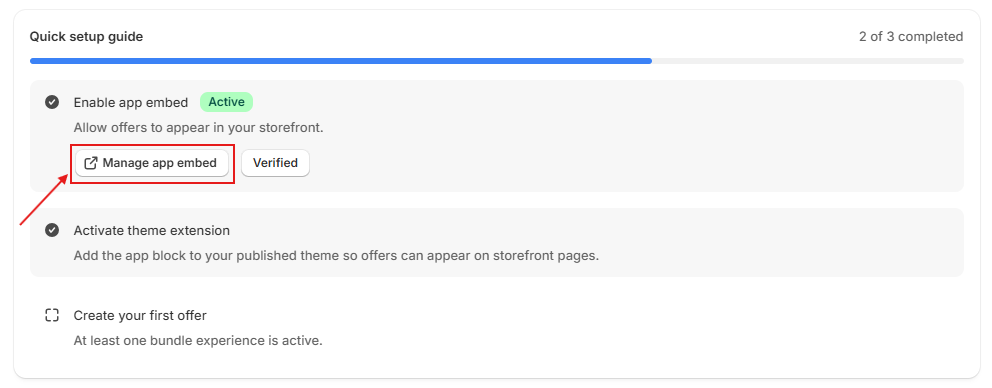
Step 2: Toggle ComboKit On & Save
In the left-hand navigation of the Theme Editor, select 'App embeds' (the third icon). Locate 'ComboKit', switch the toggle ON, and click the 'Save' button in the top-right corner.

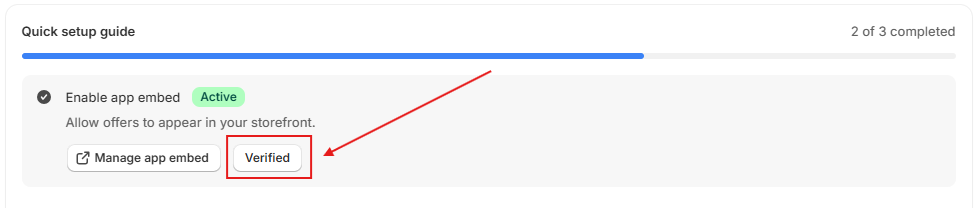
Step 3: Verify Installation Status
Return to the ComboKit dashboard and click 'Verify Installation'. The embed status will turn into a green 'Active' badge, confirming theme connectivity.
Create Your First Bundle
Select your bundled products, configure discount rules, and preview your bundle pricing.
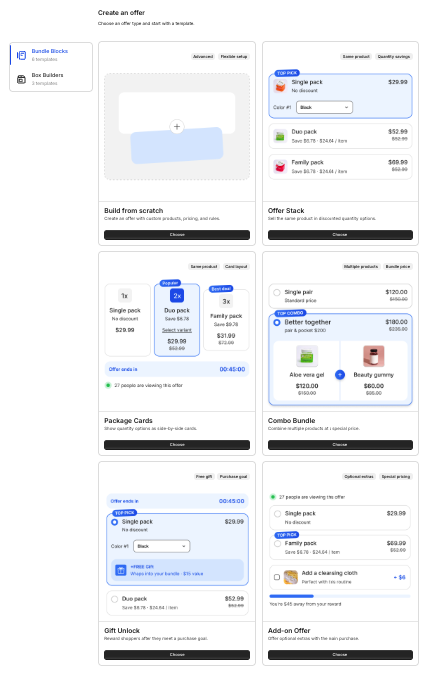
Step 1: Select Bundle Type
Navigate to the Bundles section in your dashboard and click 'Create Bundle'. Choose between Fixed Bundle, Mix & Match, Frequently Bought Together, or Volume Discount.
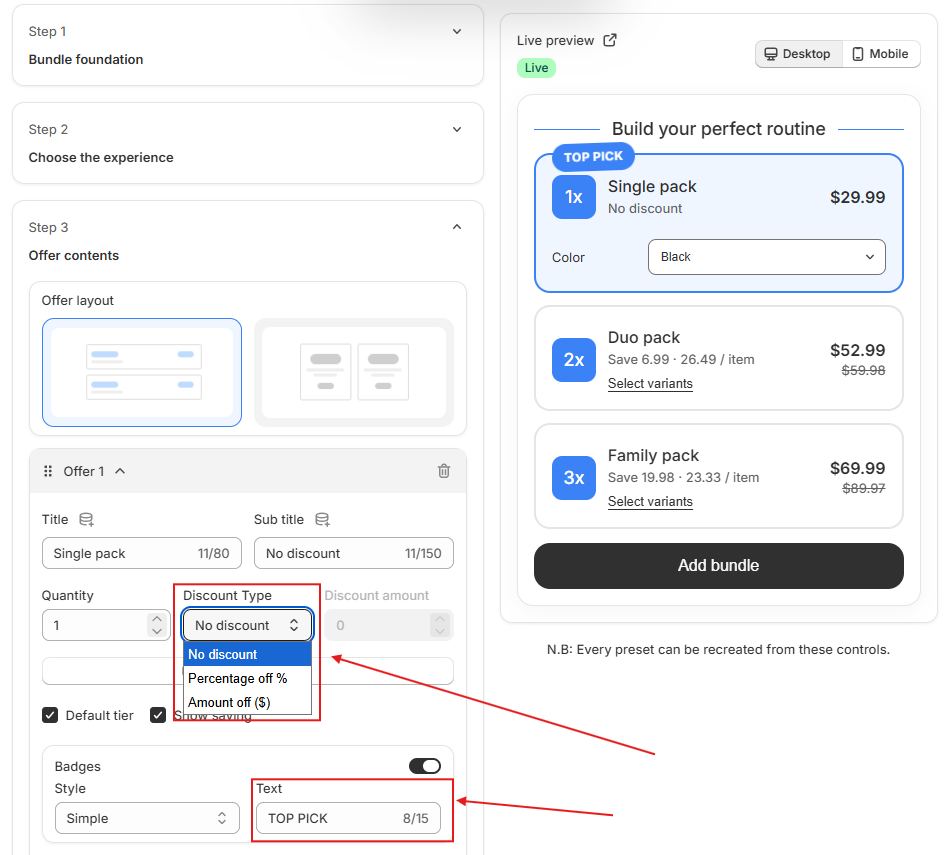
Step 2: Choose Products & Set Discount Rules
Search and pick the main product and bundled items. Set your preferred discount type (Percentage off, Fixed amount, or Tiered pricing), and enter your promotional badge text.
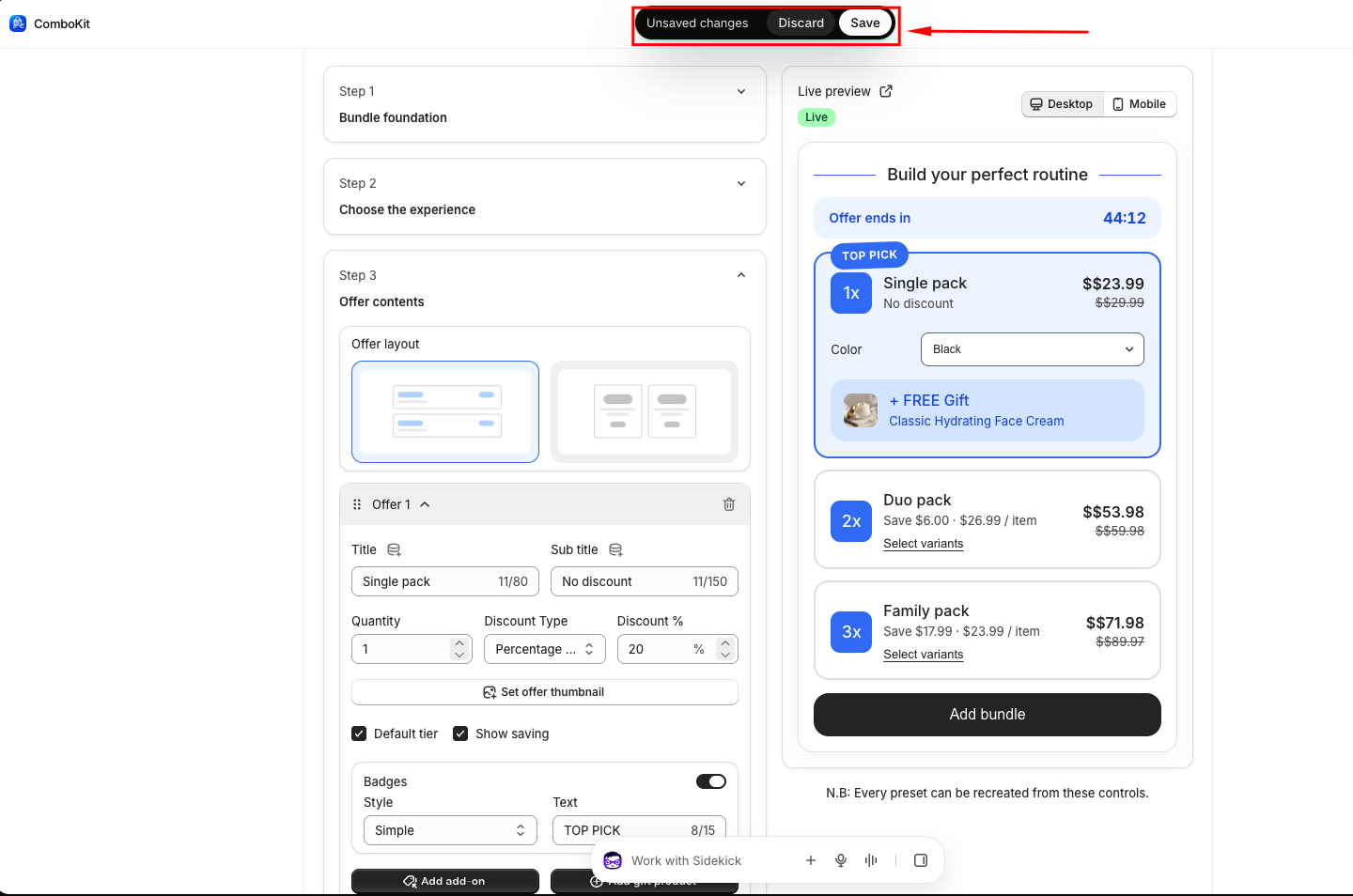
Step 3: Publish & Activate Bundle
Review your bundle settings, title, and preview. Click 'Save & Publish' to set the bundle to Active status and enable inventory tracking.
Add Widget Block to Theme
Place the ComboKit widget block on your product page template to display deals to shoppers.
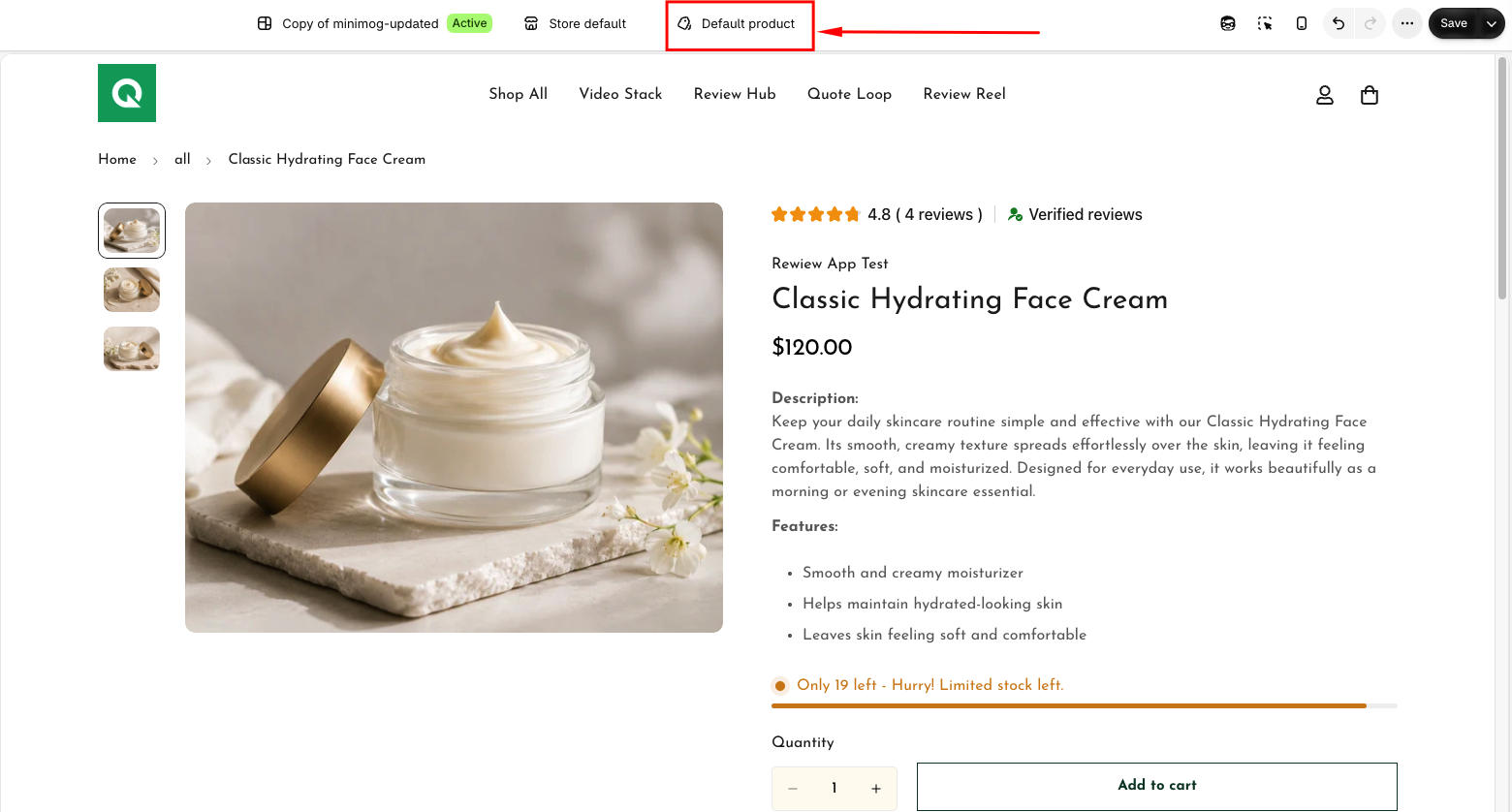
Step 1: Navigate to Product Template
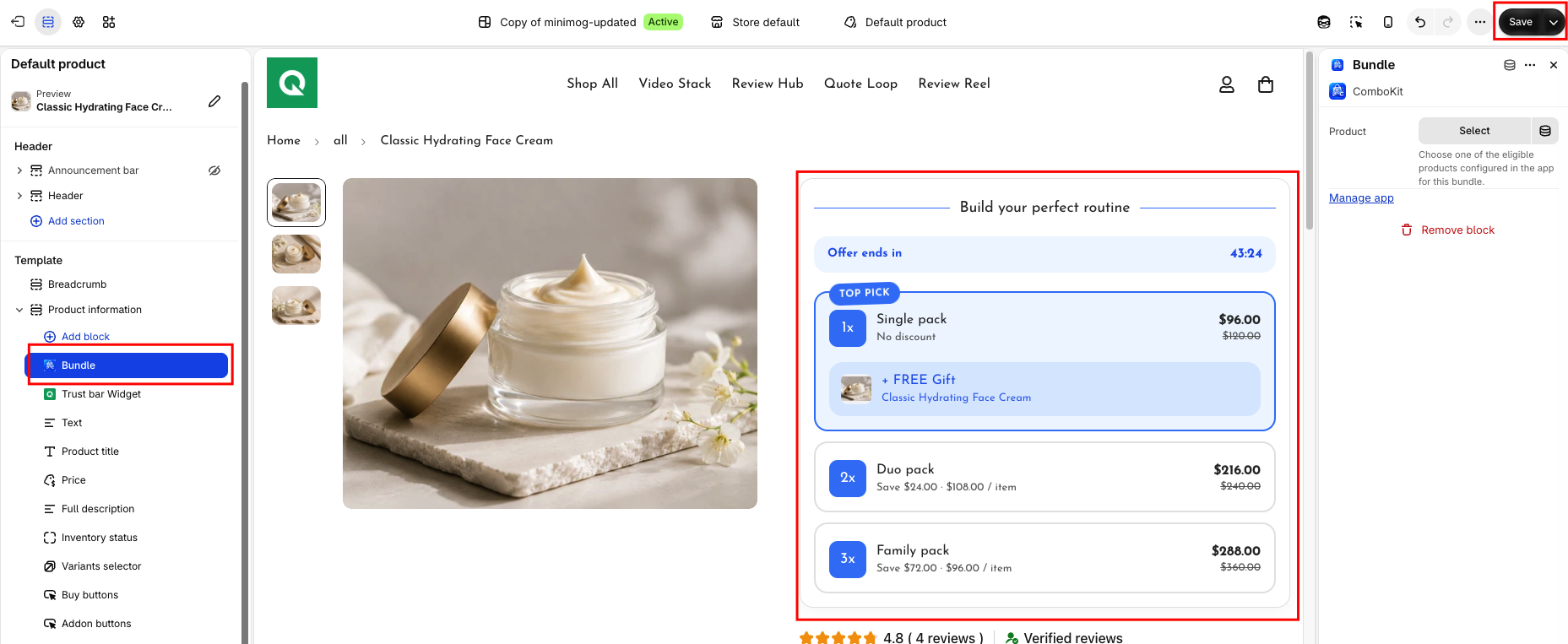
In your Shopify Theme Editor, switch the top page selector from 'Home page' to 'Products' > 'Default product'.
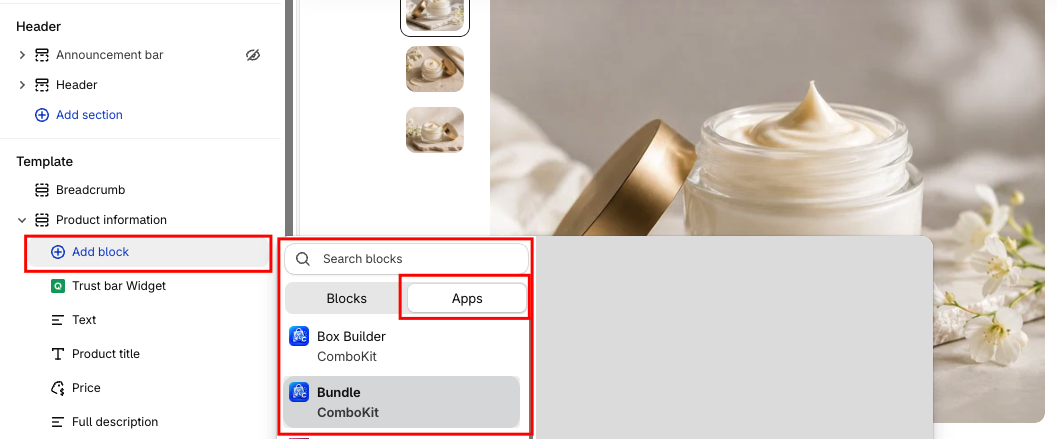
Step 2: Add 'ComboKit' Block & Position
In the left sidebar under 'Product Information', click 'Add block', select 'ComboKit Widget' under the Apps tab.
Step 3: Save & Verify on Storefront
Click 'Save' in the top right. Open a bundled product page on your storefront to verify that bundle options, variant selectors, and discounted pricing appear seamlessly.
The ComboKit Dashboard is the central command center for your store's bundle campaigns. It gives you immediate visibility into active vs. draft offers, setup onboarding status, quick access to bundle creators, and recent campaign updates.
Dashboard Overview & Key Sections
- Setup Guide Widget: A guided onboarding checklist at the top of the dashboard tracking core milestones: activating the theme app embed, creating your first bundle, and placing widget blocks on your product pages.
- Green verification badges update in real-time as each requirement is met.
- Bundle Type Cards & Statistics: Quick action cards for both offer engines:
- Bundle Blocks: Inline product offers (sets, gifts, add-ons, package choices). Displays current counts for Active, Draft, and Total blocks, with 1-click 'Create block' and 'Manage blocks' buttons.
- Box Builders: Mix-and-match bundle builders. Displays Active, Draft, and Total box builder counts with 1-click 'Create builder' and 'Manage builders' buttons.
- Recent Offers Table: Instant list of your latest 5 bundle configurations, including bundle title, offer type badge, live status indicator, creation date, and direct edit shortcuts.
- Help & Documentation Shortcuts: Direct links to onboarding tutorials, live chat support, and technical setup guides.
Navigating the App
Use the Shopify embedded navigation bar or the dashboard shortcuts to access key modules:
- Templates (/app/templates): Browse pre-designed, conversion-optimized templates for both Bundle Blocks and Box Builders.
- Bundles (/app/bundles): Full bundle management table featuring search, type filtering (Bundle Block vs. Box Builder), status toggles (Live, Paused, Draft), sorting, and bulk deletion.
- Analytics (/app/analytics): Deep performance metrics, customer conversion funnels, revenue breakdown by experience type, and top-selling offers.