Quick Setup Guide
The Quick Setup Guide helps you easily install and configure ComboKit on your Shopify store. Follow these simple steps to activate the app embed, configure your first bundle offer, and display high-converting bundle widgets across your storefront.
Enable App Embed
Activate the ComboKit core app embed in your Shopify theme so bundle scripts load smoothly without altering theme code.
Step 1: Open Shopify Theme Editor
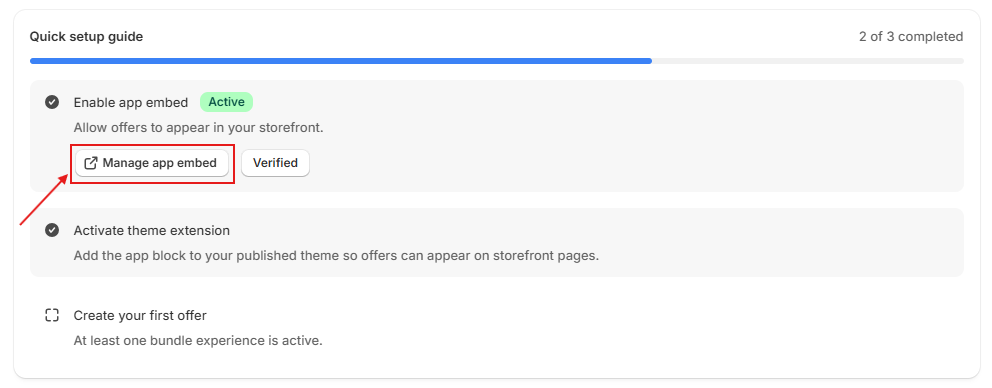
From the ComboKit dashboard, click the 'Enable App Embed' button. This directly opens your active Shopify Theme Editor in a new tab.
Step 2: Toggle ComboKit On & Save
In the left-hand navigation of the Theme Editor, select 'App embeds' (the third icon). Locate 'ComboKit', switch the toggle ON, and click the 'Save' button in the top-right corner.

Step 3: Verify Installation Status
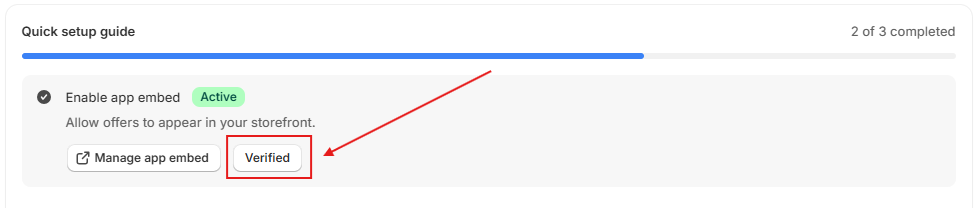
Return to the ComboKit dashboard and click 'Verify Installation'. The embed status will turn into a green 'Active' badge, confirming theme connectivity.
Create Your First Bundle
Select your bundled products, configure discount rules, and preview your bundle pricing.
Step 1: Select Bundle Type
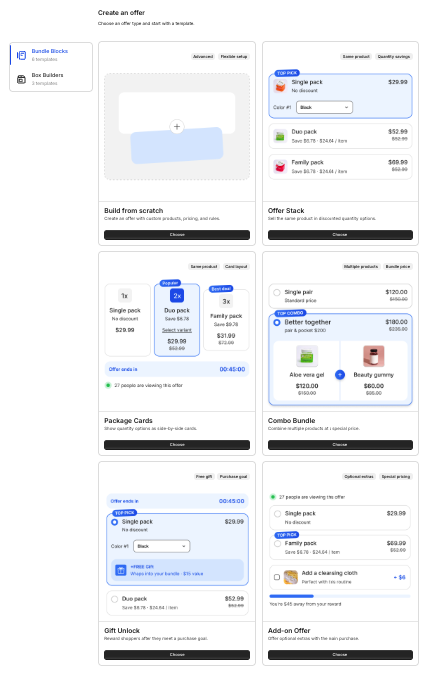
Navigate to the Bundles section in your dashboard and click 'Create Bundle'. Choose between Fixed Bundle, Mix & Match, Frequently Bought Together, or Volume Discount.
Step 2: Choose Products & Set Discount Rules
Search and pick the main product and bundled items. Set your preferred discount type (Percentage off, Fixed amount, or Tiered pricing), and enter your promotional badge text.
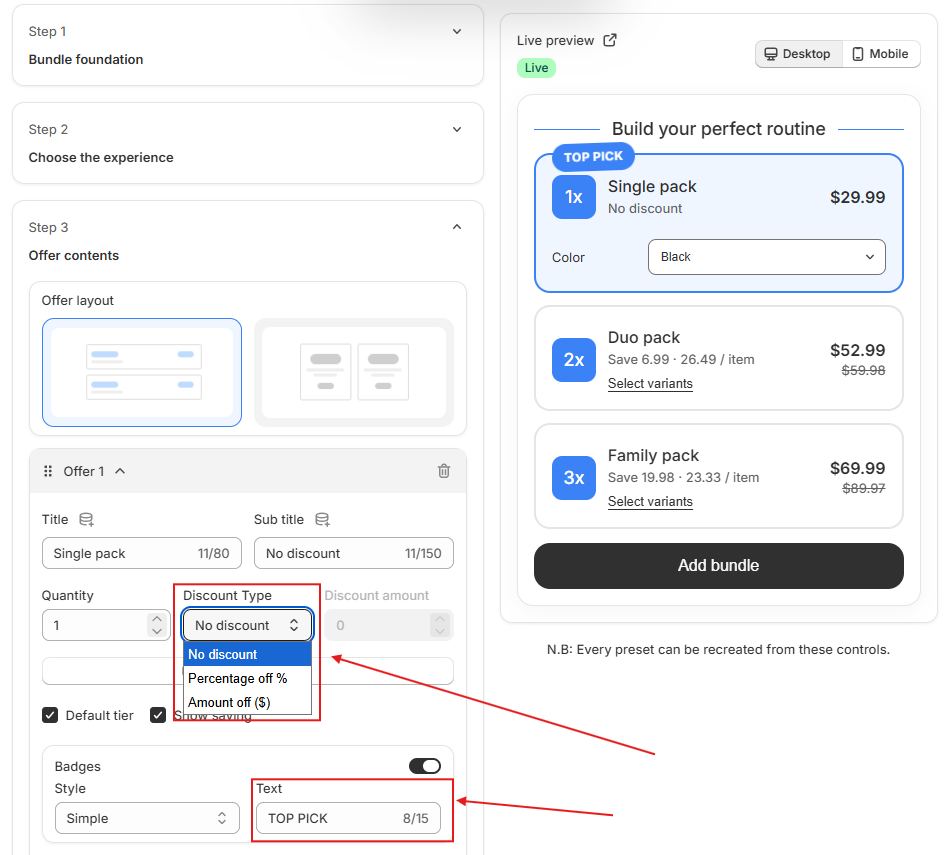
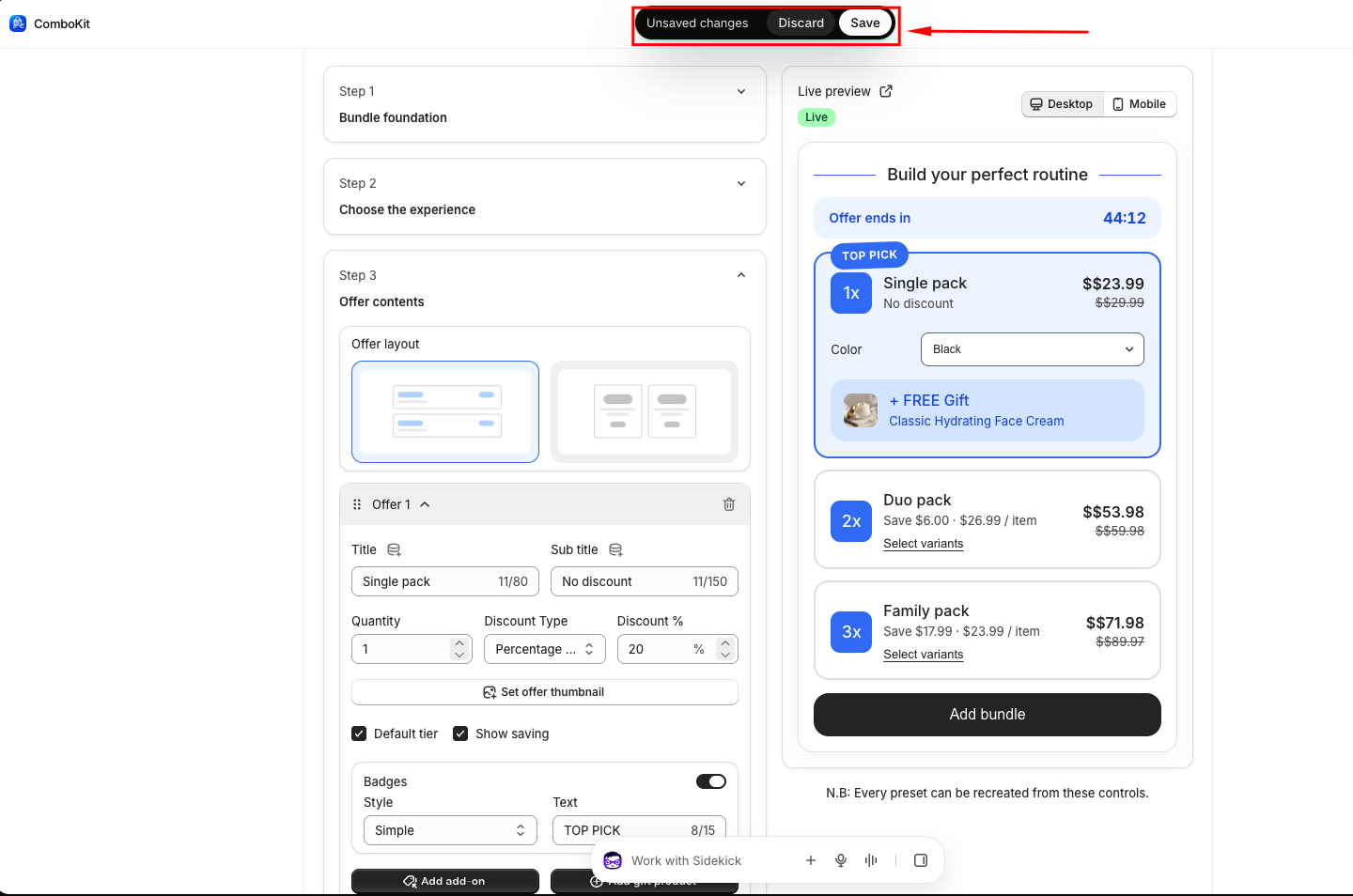
Step 3: Publish & Activate Bundle
Review your bundle settings, title, and preview. Click 'Save & Publish' to set the bundle to Active status and enable inventory tracking.
Add Widget Block to Theme
Place the ComboKit widget block on your product page template to display deals to shoppers.
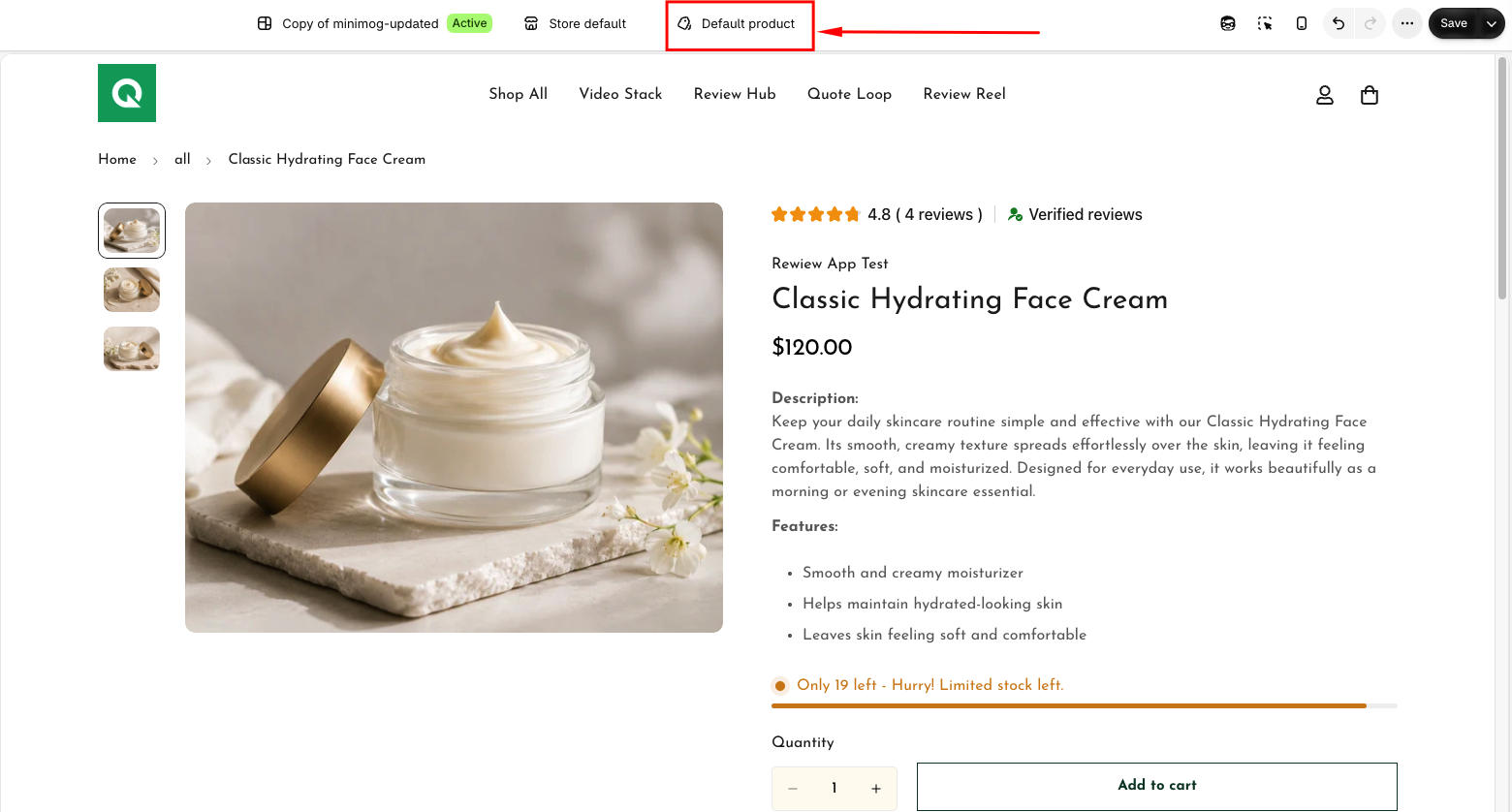
Step 1: Navigate to Product Template
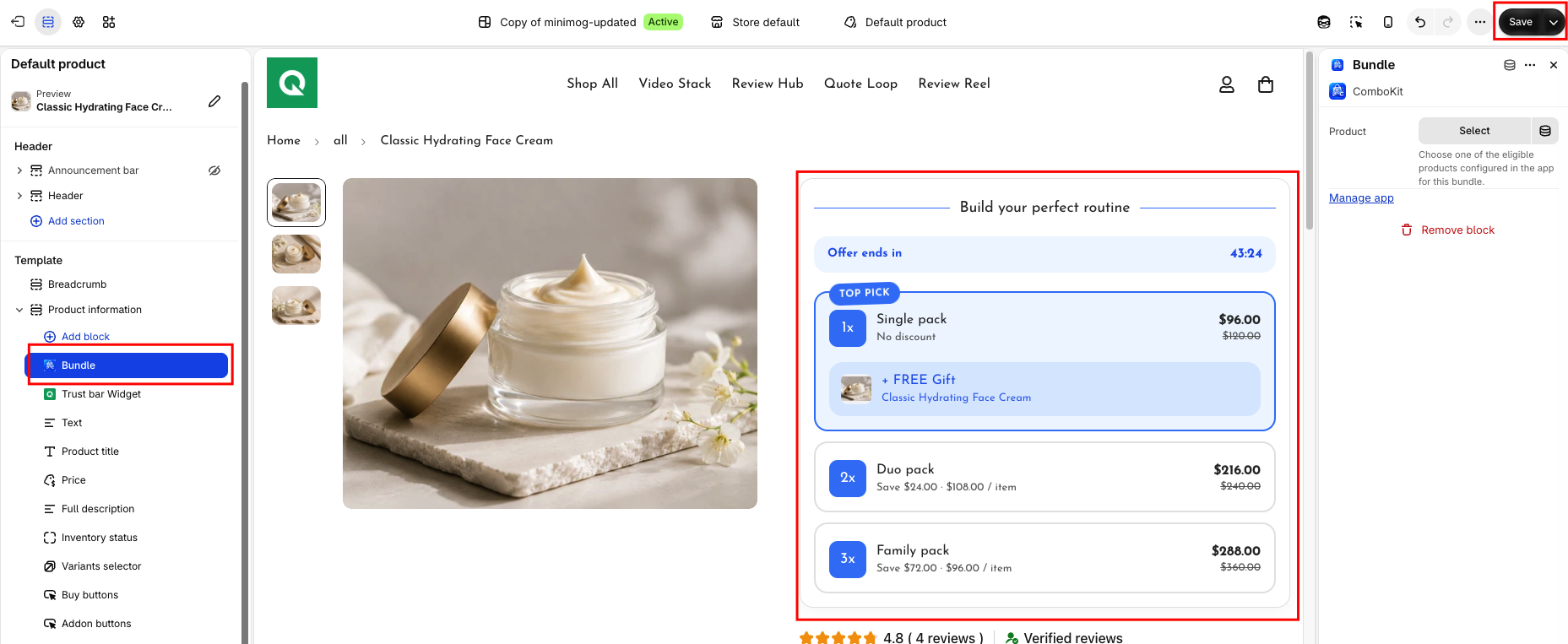
In your Shopify Theme Editor, switch the top page selector from 'Home page' to 'Products' > 'Default product'.
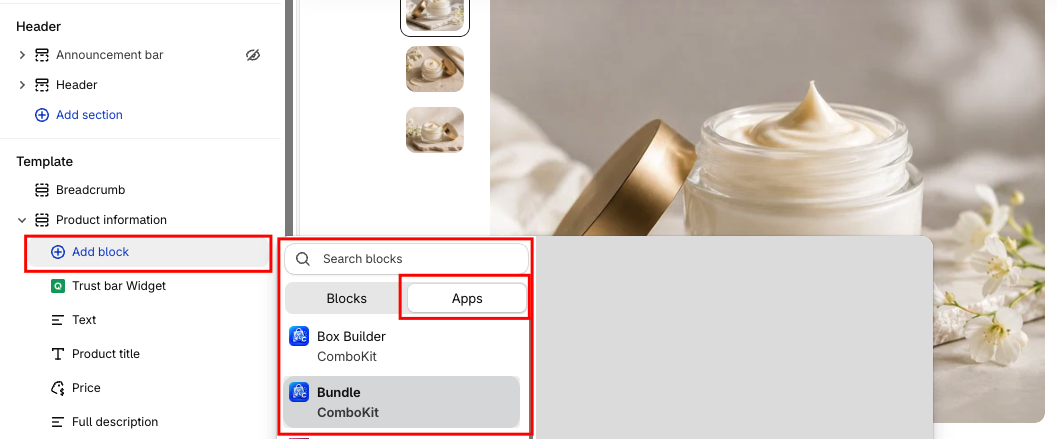
Step 2: Add 'ComboKit' Block & Position
In the left sidebar under 'Product Information', click 'Add block', select 'ComboKit Widget' under the Apps tab.
Step 3: Save & Verify on Storefront
Click 'Save' in the top right. Open a bundled product page on your storefront to verify that bundle options, variant selectors, and discounted pricing appear seamlessly.
After setup, customize your bundle widgets to match your brand style. Start with the Dashboard to view performance analytics and active bundles. For help, Contact Us.